


Looking to add even more details about your posts in the query loop block? There are a couple ways you can achieve it!
Using shortcodes!
Yes, shortcodes work within emails, and within the query loop block. How cool! So if you have a shortcode that displays data about a post, that can be used within the query loop post template to customize the output.
Using custom post merge tags!
You can also register custom post merge tags specifically for Groundhogg to add custom data to your query loops.
What are post merge tags?
You’ll see example post merge tags when working with the Query Loop block in the email editor. For example #post_title# or #thumbnail#. This is how Groundhogg identifies post data to merge into the template.
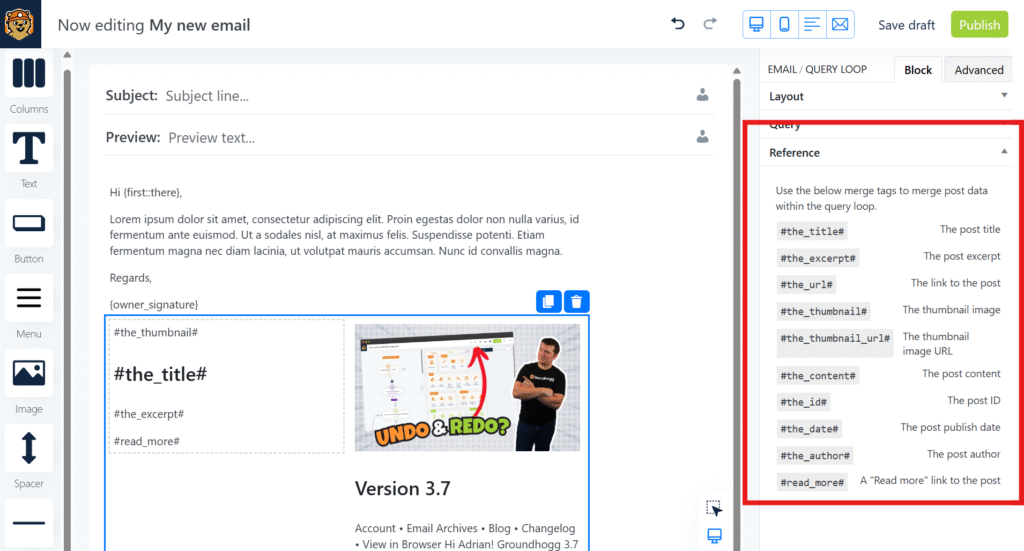
Unlike contact replacement codes, post merge tags are merged into the content using a simple search and replace. They accept no arguments, and their return values are static based on the current post.
How to register custom post merge tags
A simple snippet will allow your to register your own custom post merge tags.
⚠️ Your custom post merge tags will not appear in the editor in the reference table or in the tag inserter, so you’ll have to remember them to use them. They will appear in previews though!
<?php

/**
 * Add custom merge tags for the query loop. Most post functions like get_the_ID() work here,
 * as we properly set up the WordPress query loop earlier. You're welcome!
 *
 * @param array $merge_tags  the list of available merge tags in [ 'tag_name' => 'value' ] format
 * @param array $block_props the properties of the parent query loop block, including query information
 *
 * @return array
 */
function my_custom_query_loop_post_merge_tags( array $merge_tags, array $block_props ) {


	$post_id = get_the_ID();

	$custom_field = get_post_meta( $post_id, '_custom_field', true );

	$merge_tags['custom_field'] = $custom_field; // you'd use #custom_field# in the editor now to merge in the data

	return $merge_tags;
}

add_filter( 'groundhogg/post_merge_tags', 'my_custom_query_loop_post_merge_tags', 10, 2 );
With this code you’d now use #custom_field# in the email editor to merge in whatever data was in the custom field.
Was this helpful?
Let us know if this document answered your question. That’s the only way we can improve.