


Overview
Groundhogg integrates with Elastic Email to provide fast, reliable, and cost-effective delivery of transactional and marketing emails. This guide walks you through installing the integration, connecting your Elastic Email API credentials, and configuring bounce and complaint handling.
How Fast Is Elastic Email?
Elastic Email is optimized for high-volume email delivery, with Groundhogg’s integration capable of sending up to 100 emails per second, depending on your hosting environment, PHP version, and Elastic Email account limits.
Install the Integration
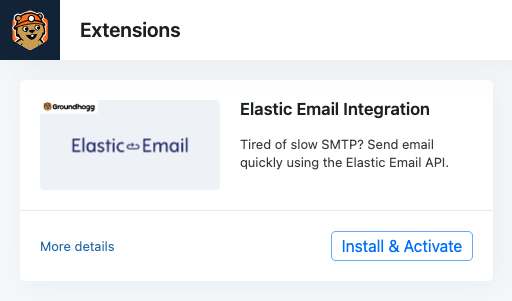
You can install the Elastic Email integration using the Groundhogg Helper plugin or by manually uploading the plugin files. Once installed, Elastic Email settings will appear in Groundhogg » Settings » Email.
Get Your API Credentials
Sign up with Elastic Email, log in to your Dashboard » Settings » Manage API keys

Click Create API Key or use an existing key.

Enter a name, and click “Full access” for permissions

Save the generated key in a secure place and prepare to use it in Groundhogg.

Connect Groundhogg to Elastic Email
- Visit your WordPress dashboard, go to Groundhogg » Settings » Email.
- Scroll to the Elastic Email settings section.
- Paste your Elastic Email API Key into the provided field.
- Save your changes.

Scroll to the top and assign outgoing email to Elastic Email.

Groundhogg will now use Elastic Email for outgoing emails.
Bounce and Complaint Handling
To automatically manage bounces and complaints in Groundhogg, configure a webhook in Elastic Email:
- In your Elastic Email Dashboard, go to Settings » Webhooks.
- Click Create Webhook.
- Paste the Webhook URL from Groundhogg » Settings » Email » Elastic Email.
- Enable the following event types:
- Bounce
- Complaint
- Unsubscribe
- Save your webhook settings.
Elastic Email will now notify Groundhogg of bounce and complaint events, ensuring your contact list remains clean and compliant.
FAQs / Troubleshooting
Q. Why are my emails not sending after setting up Elastic Email?
A. Ensure your API key is correct and your sending domain is verified in Elastic Email. Also, check that you’ve selected Elastic Email for the appropriate email types (WordPress, Transactional, or Marketing) in Groundhogg » Settings » Email. You can test the connection by clicking Test API Connection in the Elastic Email settings.
Q. Does Elastic Email support high-volume email campaigns?
A. Yes, Elastic Email is designed for high-volume email delivery. Groundhogg’s integration can send up to 100 emails per second, but actual performance depends on your hosting environment and Elastic Email account limits. Contact Elastic Email support to ensure your plan supports your campaign volume.
Q. How do I troubleshoot webhook issues for bounce and complaint handling?
A. If bounces or complaints aren’t being recorded in Groundhogg, verify that the webhook URL from Groundhogg is correctly pasted in Elastic Email’s webhook settings and that the required event types (Bounce, Complaint, Unsubscribe) are enabled. You can also check the webhook logs in Elastic Email to confirm events are being sent.
Was this helpful?
Let us know if this document answered your question. That’s the only way we can improve.