


Overview
Safe Mode in Groundhogg is a troubleshooting tool designed to help users identify conflicts between Groundhogg and other WordPress plugins. By temporarily disabling all non-Groundhogg plugins, Safe Mode allows you to isolate issues and determine whether the problem lies with Groundhogg or another plugin.
When to Use
Use Safe Mode when Groundhogg is crashing, throwing errors, or behaving unexpectedly. It’s particularly helpful if you suspect that another plugin might be interfering with Groundhogg’s functionality, allowing you to diagnose the issue without manually deactivating plugins one by one.
How It Works
When you enable Safe Mode, Groundhogg deactivates all plugins except its own core components. This creates a clean environment to test whether the issue persists. If the problem disappears in Safe Mode, the issue likely stems from a conflicting plugin. You can then re-enable plugins one at a time to identify the culprit.
Setup Instructions
- Log in to your WordPress dashboard.
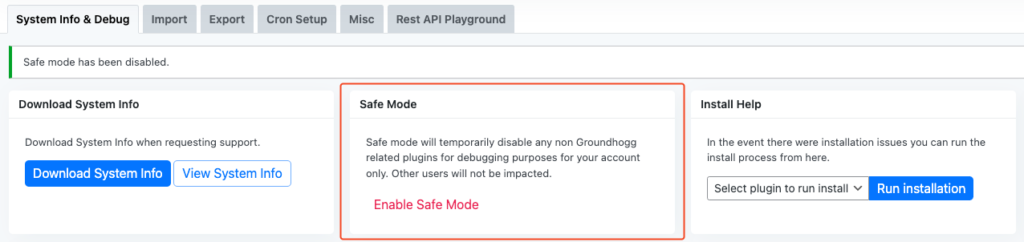
- Go to Groundhogg » Tools » System Info & Debug » Safe Mode.
- Click Enable Safe Mode.
- You will be asked, “Are you sure?” Cancel or Confirm. Click the Confirm button.
- Test Groundhogg to see if the issue persists.
- To disable Safe Mode, go to the top-right Admin menu, hover over Safe Mode Enabled, and click Disable Safe Mode.
Example Use Case
A user notices that Groundhogg is throwing errors whenever they try to send an email campaign. Suspecting a plugin conflict, they enable Safe Mode, which disables all other plugins. The email campaign works perfectly in Safe Mode. They then re-enable their plugins one by one and discover that a caching plugin was causing the issue. After disabling the problematic plugin and turning off Safe Mode, their email campaigns resumed functioning normally.
FAQs / Troubleshooting
Q. What if the issue persists in Safe Mode?
A. If the problem continues, it might be related to Groundhogg itself. Contact the Groundhogg support team for assistance.
Q. Will enabling Safe Mode affect my site’s front end?
A. Safe Mode only affects the backend by disabling plugins; your site’s front end should remain unaffected.
Q. I can’t find the Safe Mode option—where is it?
A. Ensure you’re in the correct menu: Groundhogg » Tools » System Info & Debug. If you still can’t find it, check if your Groundhogg plugin is up to date.
Q. Is there a plugin to help me discover which plugin is causing the issue
A. You can use a plugin like Plugin Detective to help narrow down which plugin is causing the conflict.
Was this helpful?
Let us know if this document answered your question. That’s the only way we can improve.