


Overview
Groundhogg integrates with Postmark to provide ultra-fast, reliable delivery of transactional and marketing emails. This guide walks you through installing the integration, connecting your Postmark API credentials, and configuring bounce and complaint handling.
How Fast Is Postmark?
Postmark is designed for speed and delivers most emails in under a second. Groundhogg’s integration typically sends up to 500 emails per second, depending on your hosting environment and API limits.
Install the Integration
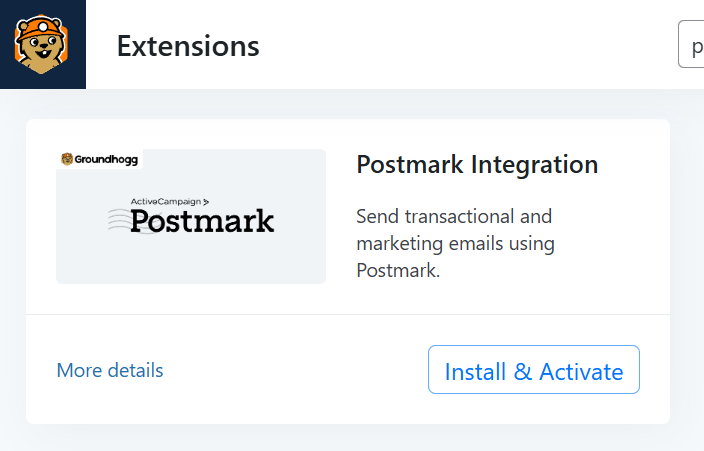
You can install the Postmark integration using the Groundhogg Helper plugin or manually upload the plugin files. Once the integration is installed, Postmark settings will appear in Groundhogg » Settings » Email.
Get Your API Credentials
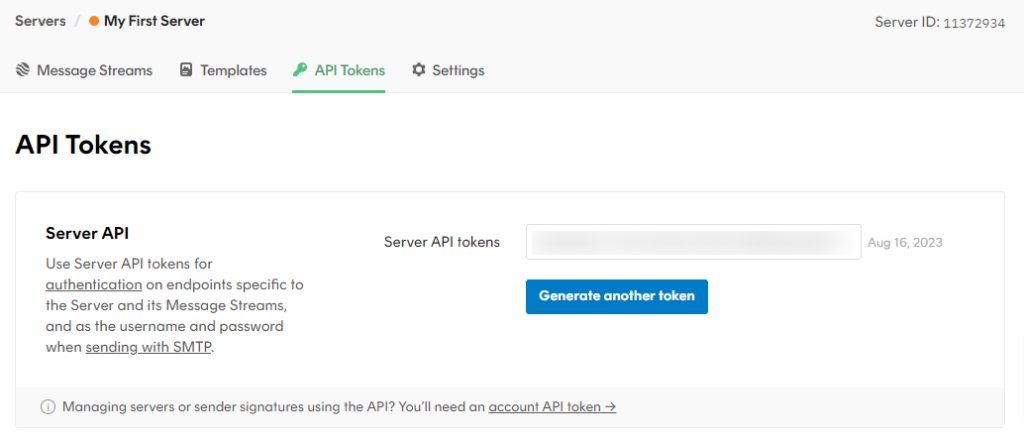
- Log in to your Postmark Dashboard.
- Go to Servers and select the server you want to use.
- Click on the API Tokens tab.
- Copy the Server API Token.
If you haven’t created a server yet, create one and associate it with your verified sending domain before proceeding.
Connect Groundhogg to Postmark
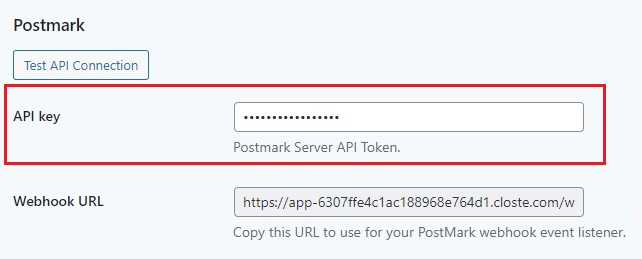
- In your WordPress admin, go to Groundhogg » Settings » Email.
- Scroll down to the Postmark settings section.
- Paste your Server API Token into the field provided.
- Save your changes—the page will reload.
- Click Test API Connection to confirm the setup is working.
Groundhogg can now use Postmark to send emails through your selected server.
Bounce and Complaint Handling
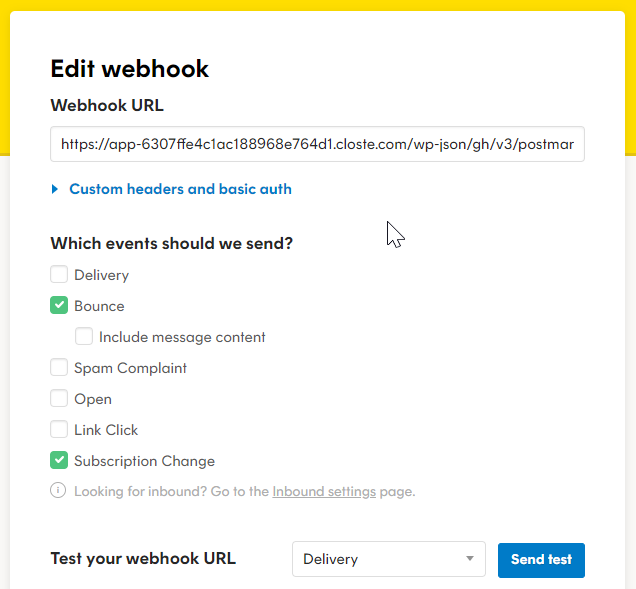
To automatically manage bounces and spam complaints, set up a webhook in Postmark:
- In your Postmark server, go to Settings » Webhooks.
- Click Add Webhook and enter the Webhook URL from Groundhogg » Settings » Email » Postmark. It will look like:
https://yoursite.com/wp-json/gh/v3/postmark/listener?webhook_key=foobar - Enable the following webhook event types:
- Bounce
- Spam Complaint
- Subscription Change
- Save your webhook settings.
Postmark will now notify Groundhogg of bounce and complaint events, keeping your list clean and compliant.
Tell Groundhogg To Use Postmark
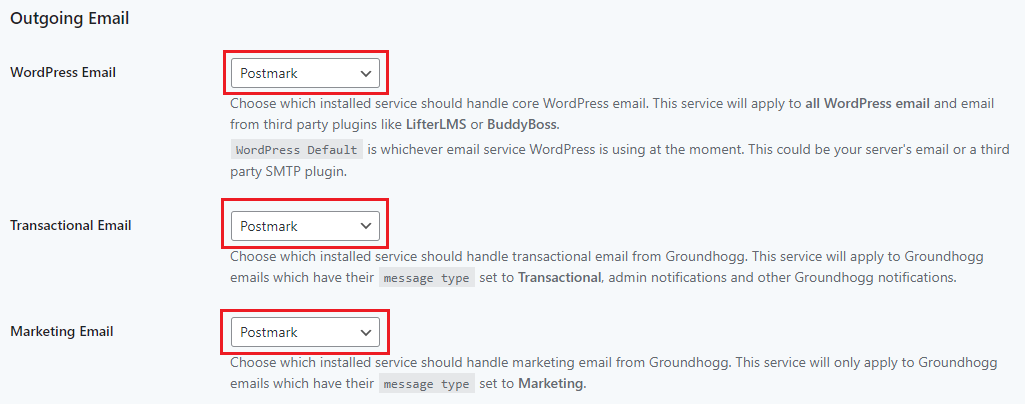
Groundhogg will not use Postmark automatically. You must specify which types of email should be sent through Postmark.
At the top of Groundhogg » Settings » Email, choose Postmark for:
- Marketing Email
- Transactional Email
- WordPress Email
Disable Link Tracking (Optional)
To avoid conflicts with Groundhogg’s built-in tracking:
- Go to your Postmark server settings.
- Under Track Opens and Track Links, disable both options.
- Save changes.
Disabling tracking ensures Groundhogg remains in full control of engagement tracking and avoids duplicated analytics.
Was this helpful?
Let us know if this document answered your question. That’s the only way we can improve.