


Overview
Replacement codes let you dynamically insert personalized information into your emails, notes, pages, and other areas of Groundhogg. They’re small snippets that get replaced with actual data — like a contact’s name, email, or custom field value — when a message is sent or a flow is run.
They’re perfect for creating personalized experiences at scale, without manual input.
Coming from another CRM? You might know them as merge fields or merge codes.
When to Use
Use replacement codes when you want to:
- Use replacement codes when you want to:
- Personalize subject lines and email content (
Hi {first_name}) - Add dynamic info to notes, emails, or SMS
- Display contact data on frontend pages using Site Personalization
- Include custom field values in automations
How To Use
Replacement codes are wrapped in single curly braces like {this}. When the system sees one, it swaps it out for the corresponding data related to the current contact.
If the corresponding field or data is empty, the replacement code will render blank unless you specify a default value like {first::this}.
Replacements work in:
- Emails (both HTML and plain text)
- SMS messages
- Notes and tasks
- Site personalization shortcodes and frontend blocks
- Some system messages
- Flow actions
- Any field or setting with the person icon
You don’t have to remember what replacement codes are available.
In most features that support replacement codes you’ll see a clickable icon that will show a list of available replacement codes. Clicking on a code will insert it at the last cursor position.
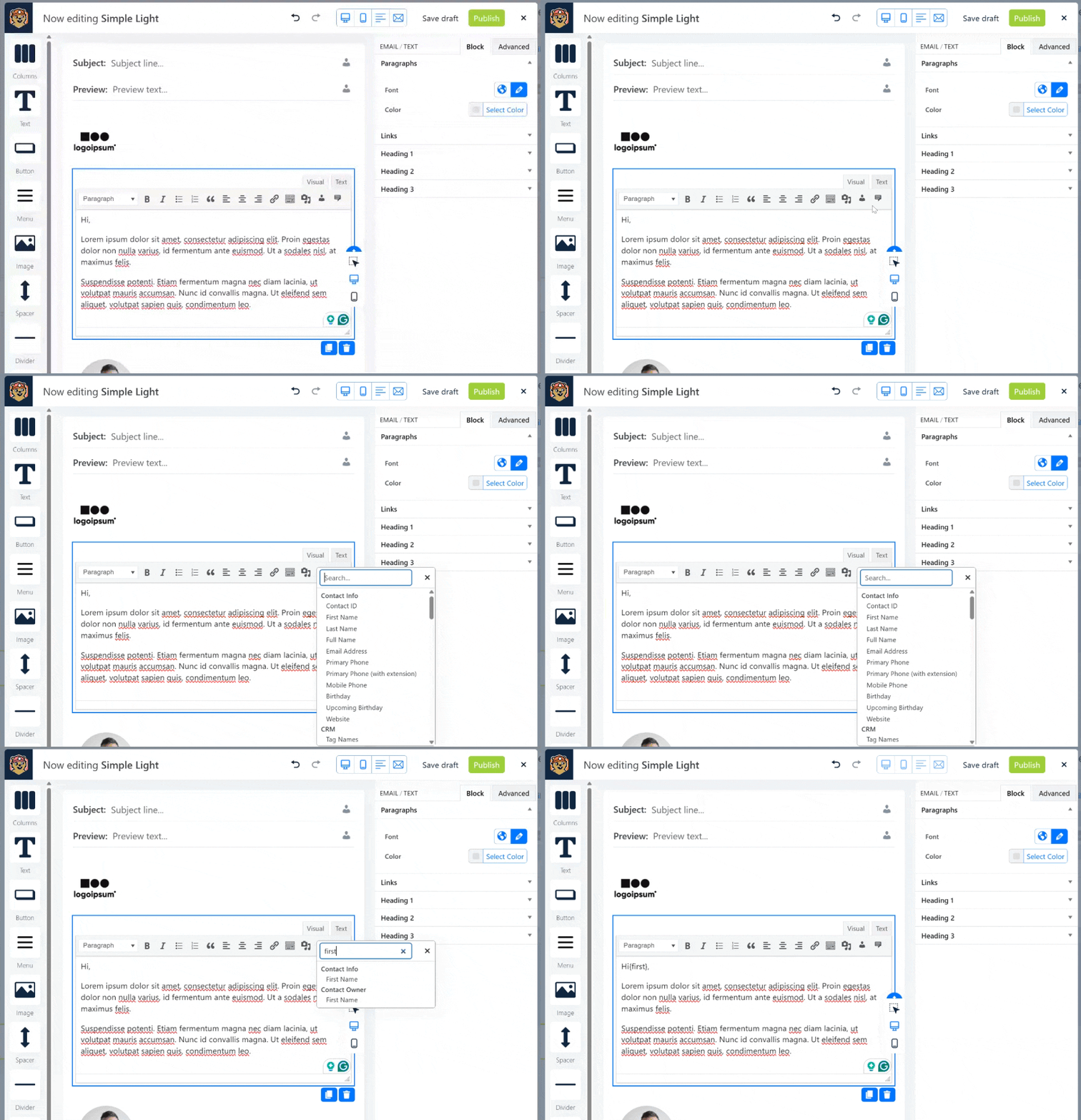
You can also use the keyboard shortcut CTRL + SHIFT + { to bring up the replacement code inserter.
Standard replacement codes
Groundhogg comes with some standard replacement codes like {email} and {first} that allow you to create basic personalized messages.
Custom Fields
Whenever you create a custom field, a replacement code is automatically registered so that you can use it for advanced personalization. The replacement code will always be the {internal_name} of the field. You can use default values as with the standard codes like {internal_name::this}.
Custom Replacement Codes
You can register your own custom replacement codes with a code snippet or by using the custom replacement codes add-on.
Integrations
Integrations like WooCommerce and Easy Digital Downloads add their own replacement codes like {wc_percent_discount} and {edd_cart_contents} to allow for personalizing the purchase journey.
Always make sure to check what replacement codes are available from integrations so you can create hyper personalized customer journeys.
Replacements On The Frontend
Looking to personalize more than emails? You can personalize your website with replacement codes as well.
Using frontend replacements requires using the WordPress Block Editor.
The following core WordPress blocks support the Groundhogg panel which has the option to enable replacement codes.
- Paragraph
- Heading
- List Item
- List
- Image
- Buttons
- Button
- Group
- Shortcode
- Columns
- Column
- Groundhogg Forms
To use…
- Add one of the above blocks to the post you want to personalize
- Open the Groundhogg block settings panel
- Toggle Enable Replacements
- Add your replacement code to the block content

FAQs / Troubleshooting
Q: What happens if the contact doesn’t have a value for the code?
A: The code will render as blank or you can set a fallback value like {code::this}.
Q: Can I create my own replacement codes?
A: You can add custom fields and reference them using their {internal_name}. You can also use the Custom Replacement Codes add-on. Developers can also create custom codes using a code snippet.
Q: Do they work in subject lines?
A: Yes, you can use them in both subject lines and body content of emails.
Q: Can I use replacement codes on the frontend?
A: Yes, some core WordPress blocks support replacement codes. Toggle Enable Replacements in the Groundhogg panel in the block settings.
Was this helpful?
Let us know if this document answered your question. That’s the only way we can improve.