


The Activity API is a flexible way of tracking historical contact interactions with your site. The Activity API can be used to create segments, custom reports, and inform conditional logic. It can be used with the Groundhogg UI and with custom code!
What is Activity?
Activity is a representation of interactions a contact has with your site and content. For example, opens, clicks, orders, and unsubscribes are all activity! You can see a timeline of the contact’s activity whenever you open a contact record. If you’re using custom activity it’ll also be visible in the timeline!
At this time the Activity API is only available for contacts and not other data types. We’re considering a broader API for companies, deals, and other data types for the future.
Custom Activity in Flows
There are is a Create Custom Activity Action and a Custom Activity Trigger in the flow editor when you have the Advanced Features add-on installed.
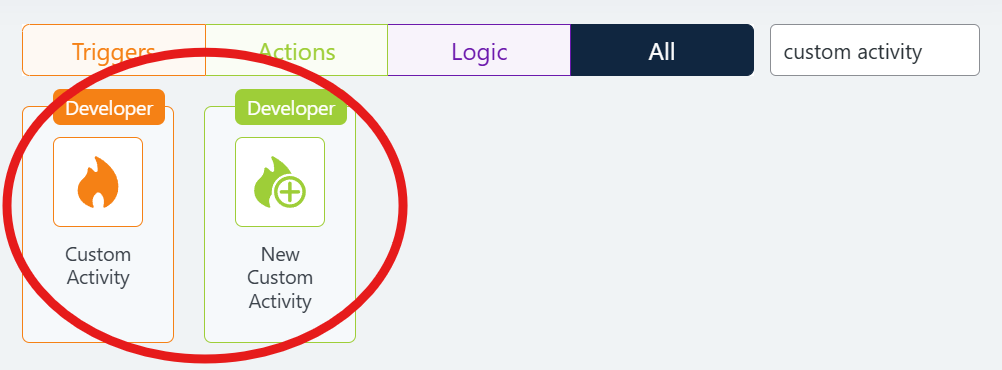
Custom Activity Action
Use the Custom Activity Action to create an activity record when a contact reaches a point in your flow that you might consider noteworthy or has some kind of monetary value attributed to it.
For example, you might want to track whenever someone fills out a form as an “application” and you know that an application is worth 25.
In the Custom Activity action you might use set the activity type to application and the value to 25.
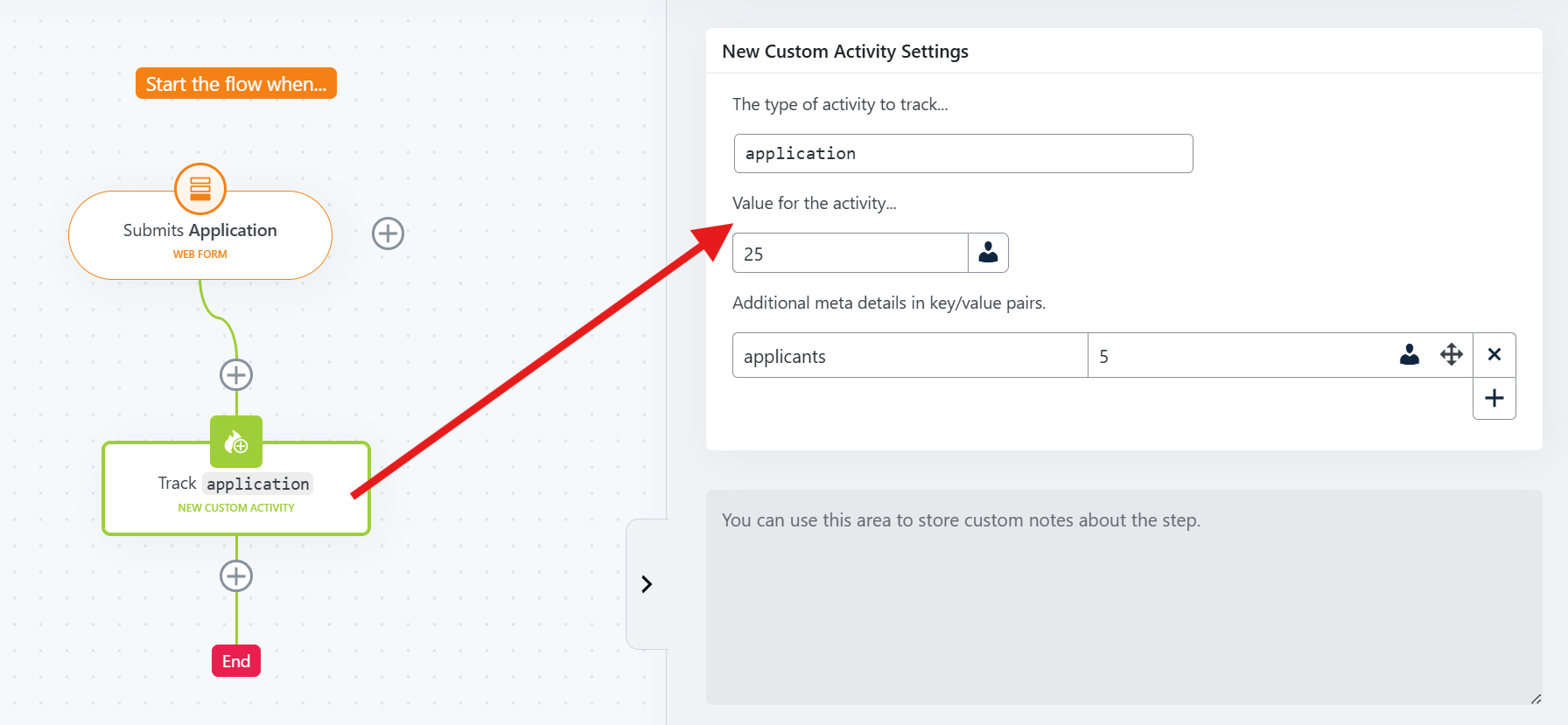
You can also add metadata to the activity record which will allow you to track specific info about the application, or about the contact.
Custom Activity Trigger
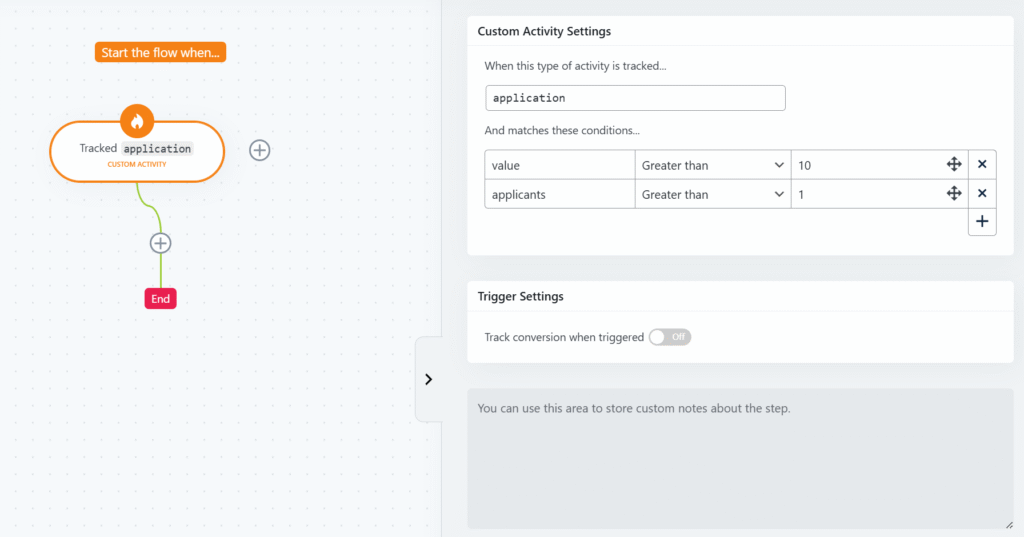
The Custom Activity trigger would be used to start or move a contact throw a flow when a new activity is created with a specific type. This is useful to move contacts into different flows using the Activity API instead of using tags and other methods.
The Custom Activity trigger also has filters! You can always filter on the value and on any expected metadata.
Custom Activity in Search Filters
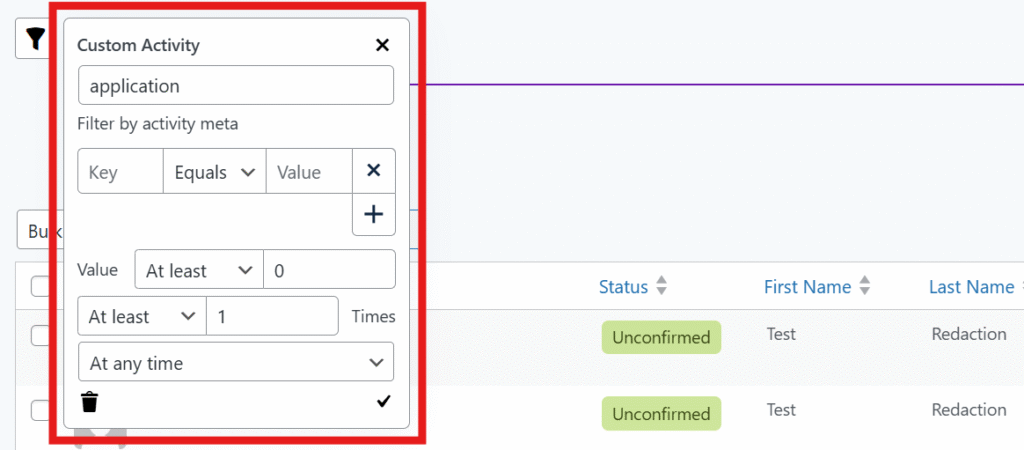
After creating some custom activity we can now segment and filter contacts based on that custom activity using the Custom Activity filter.
Enter the activity type and also set any filters for that activity, either on the value or any metadata.
Custom Activity in Reports
Because their is a value associated with the activity, we can run a report on your activity type through the custom reports feature.
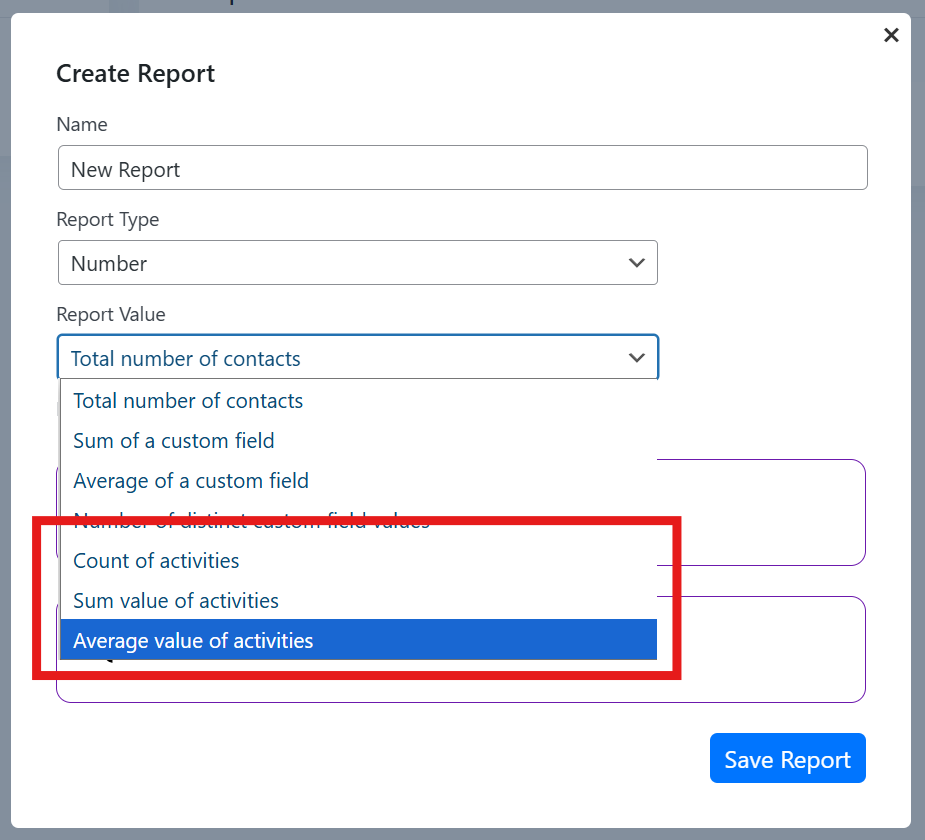
When creating a new report, select Count of activities, Sum value of activities, or Average value of activities as the report type.
- Count of Activities: The total number of individual activity records.
- Sum Value of Activities: The combined value of activity records.
- Average Value of Activities: The average value of all matching activity records.
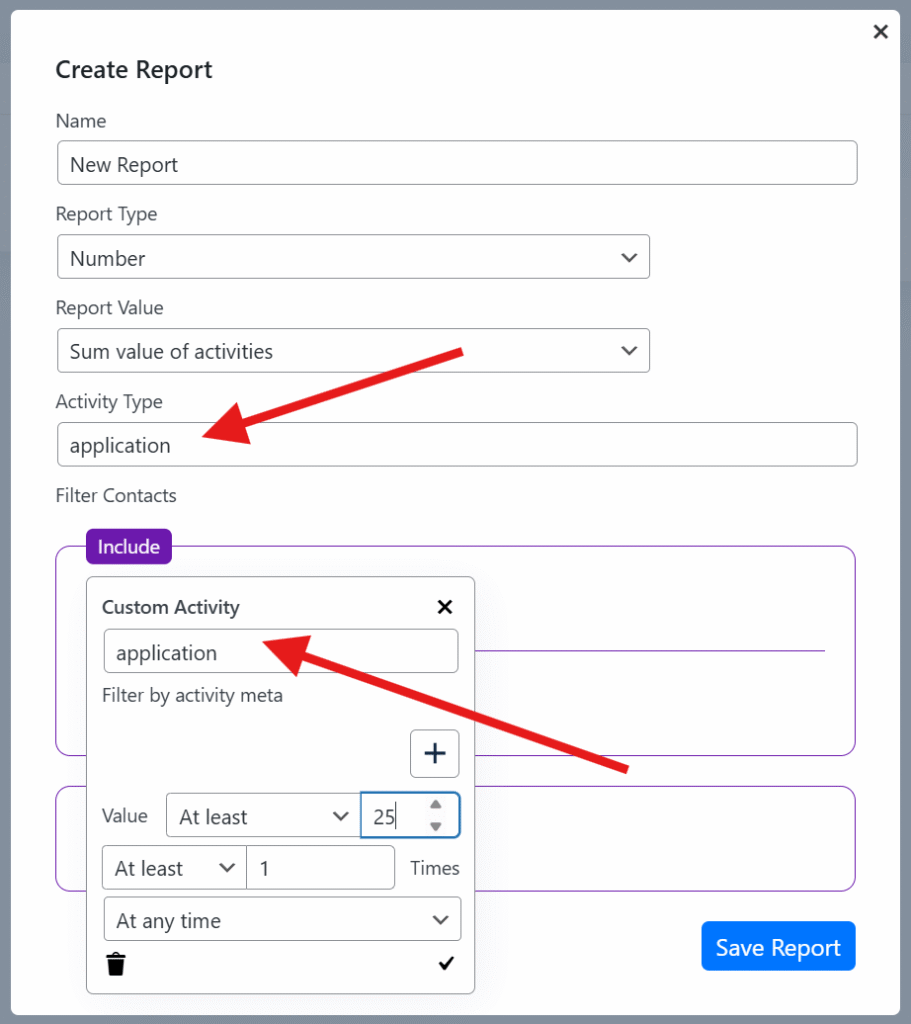
When any of those report types are selected, you can add the activity type to specify which activity to report on.
Use the Custom Activity search filter (as shown above) to limit which activity records are included in the report, and to filter activity records for only specific contacts and time ranges.
Custom Activity in the Timeline
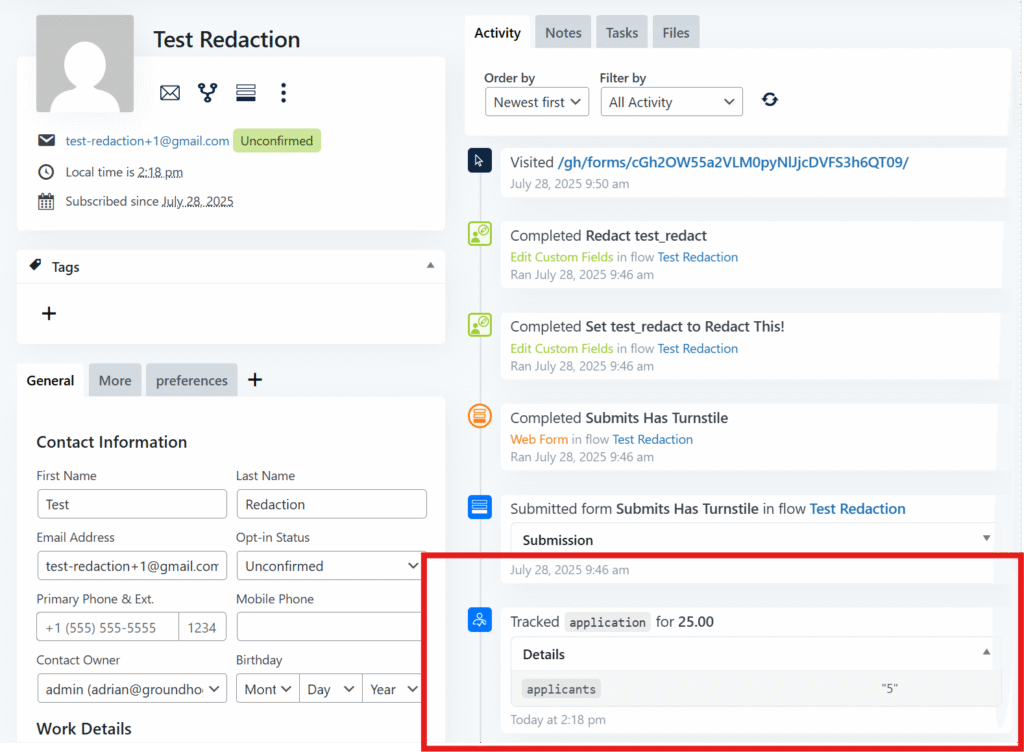
Custom Activity will be shown in the contact’s activity timeline along with any other activity.
Developing with the Custom Activity PHP API
There are several PHP functions that will allow you to interact with activity from your custom code or plugins such as track_activity() and track_live_activity()
<?php

// overwrite activity details like `value`
$args = [
	'value' => 5
];

// activity functions accept an array of metadata
$metadata = [
	'foo' => 'bar'
];

// use when there is no session for the contact, but you have a contact identifier like ID, email, user_id, or a Contact object
$activity = \Groundhogg\track_activity( 1234, 'application', $args, $metadata );

// use when the contact for which you're tracking activity for is logged-in or has an active session on the website
// you'll notice that with this function $metadata comes before $args
$activity = \Groundhogg\track_live_activity( 'application', $metadata, $args );

// both functions return an Activity object which has the standard Base_Object_With_Meta methods that allow you to further manipulate it.
$activity->get_meta( 'foo' ); // would return 'bar' for example.
Using these functions will also trigger any Custom Activity triggers in flows, and be accessible by search filters and really any of the other Activity API features.
The Activity REST API
Check out the Activity API endpoints in the REST API Playground!
Was this helpful?
Let us know if this document answered your question. That’s the only way we can improve.